

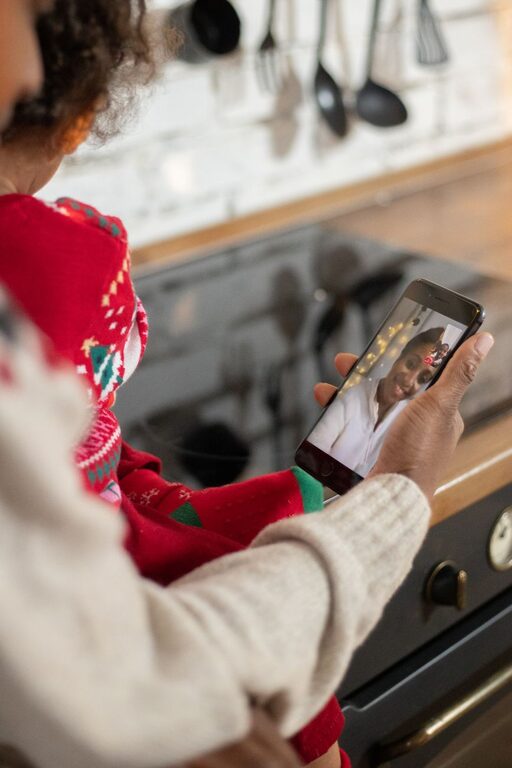
Video calls make it easier to stay close to friends and family, whether you live nearby or far away. A quick call can help people share everyday moments, celebrate special occasions, or simply catch up face to face.
Like any online activity, video calls work best when you use a few basic safety habits. Small steps can help protect your privacy, reduce unwanted interruptions, and make calls more comfortable for everyone.
Choose a Trusted Video Call Service
Start by choosing a video call app or service that meets your needs and comes from a reputable provider. Look for services that offer:
– Password-protected meetings
– Waiting rooms or approval features
– Options to control who can share their screen
– Mute and camera controls
– Clear privacy and security settings
– Regular software updates
Download apps from the official website or a trusted app store. Avoid unfamiliar links sent through unexpected messages, especially if they ask you to install a new program quickly.
It is also helpful for everyone in the household to use the same service when possible. This reduces confusion and makes it easier to learn the settings together.
Keep Your Account Secure
Your video call account may contain contact details, meeting history, or other personal information. Protect it with a strong, unique password that you do not use for other accounts.
A strong password is usually:
– Long enough to be difficult to guess
– Different from passwords used elsewhere
– Free of easily known details, such as a name or birthday
If the service offers two-step verification, consider turning it on. This adds another check when you sign in and can help protect your account if someone learns your password.
Do not share your sign-in details through text messages, email, or chat. If a friend or relative needs to join a call, send the meeting invitation instead of your account information.
Create Private Meeting Invitations
When scheduling a call, send the invitation directly to the people you want to join. Avoid posting meeting links publicly on social media or open websites.
Some services allow you to create a new meeting link for each call. This can be a useful option when you want to keep family conversations separate from community groups or work-related meetings.
Before sending an invitation, check that it includes:
– The correct date and time
– The right time zone, if participants live in different areas
– A private meeting link
– A meeting password, if available
– Simple instructions for joining
If the call includes children or older relatives who may need help, share instructions in advance. A short message explaining how to join, mute the microphone, and turn off the camera can make the experience less stressful.
Use Waiting Rooms and Entry Controls
Many video call services let the host approve participants before they enter. A waiting room can help you recognize each guest and prevent unexpected people from joining.
When possible:
- Ask guests to use a familiar name.
- Check names before admitting people.
- Remove anyone you do not recognize.
- Lock the meeting after everyone has joined if the service provides that option.
- Limit screen sharing to the host or selected participants.
These controls are especially useful for larger family calls, celebrations, and events where invitations may be forwarded by mistake.
Check What Your Camera Shows
Before starting a call, look at the area visible behind you. A camera may show more than you expect, including:
– Mail or documents
– Household schedules
– School or work information
– Family photos
– Valuables
– A visible home address
You do not need a perfect background. Simply move private items out of view or use a plain wall. Some apps also offer background blur or a virtual background.
Remember that camera placement matters. A camera pointed toward a window may reveal less detail in the room, while a camera aimed at a desk could show papers or account information. Take a moment to preview the image before joining.
Be Careful With Screen Sharing
Screen sharing can be useful for looking at photos, planning a trip, or helping someone use an app. However, it can also expose private information by accident.
Before sharing your screen:
– Close personal email and messaging apps.
– Hide notifications.
– Remove documents you do not want to display.
– Open only the window you intend to share.
– Check that account numbers and private conversations are not visible.
– Stop sharing as soon as you are finished.
If you are helping a family member with technology, explain what you are doing before sharing or viewing their screen. Ask for permission and avoid opening files or accounts that are unrelated to the issue.
Think Before Recording
Recording a call can be convenient for family events or for people who cannot attend. However, everyone should know when a call is being recorded.
Ask for agreement before recording, and explain how the file will be used. Store recordings carefully and share them only with the people who need access. Avoid uploading private family conversations to public platforms without permission.
If the service automatically records meetings, learn how to turn that feature off when it is not needed. Check where recordings are saved and who can access them.
Watch for Suspicious Requests
Friends and relatives may occasionally receive fake messages that appear to come from someone they know. A message might ask you to join a call, install unfamiliar software, or send personal information.
Be cautious if a request:
– Creates a strong sense of urgency
– Asks for passwords or security codes
– Includes an unexpected attachment
– Tells you to move the conversation to an unfamiliar app
– Requests access to your computer or phone
– Seems unusual for that person
If a message seems suspicious, contact the person through a method you already trust. For example, call their known phone number instead of replying to the unexpected message. Do not click links or install software simply because a message claims it is required for a video call.
Set Comfortable Personal Boundaries
Safety is not only about technology. People also need boundaries that make calls comfortable and respectful.
Before a regular family or friend call, agree on simple expectations:
– Ask before adding another person.
– Do not take screenshots without permission.
– Avoid sharing private conversations outside the call.
– Use mute when there is background noise.
– Give everyone a chance to speak.
– Respect when someone wants to end the call.
It is also fine to turn off your camera, skip a call, or choose a shorter meeting. A comfortable routine helps video calls remain a positive way to connect instead of another source of pressure.
Help Children and Older Family Members
Children and older adults may benefit from extra guidance. Show them how to recognize the correct app, join a private meeting, mute the microphone, and leave a call.
For younger children, use calls with trusted contacts and review basic rules, such as not sharing their school, address, passwords, or daily schedule. Keep devices in shared areas when appropriate.
For older relatives, write down simple steps and practice together. Make sure they know how to close the app, block an unwanted participant, and contact you if something seems unusual.
Review Settings Regularly
Video call apps change over time, so review your settings occasionally. Check who can contact you, whether meetings require passwords, and which permissions the app has on your device.
Keep your operating system and video call app updated through official sources. Updates may include new features, bug fixes, or security improvements.
With private invitations, thoughtful sharing, and clear boundaries, video calls can be a safe and enjoyable way to stay connected. A few minutes of preparation helps everyone focus on the conversation rather than unexpected interruptions or privacy concerns.