

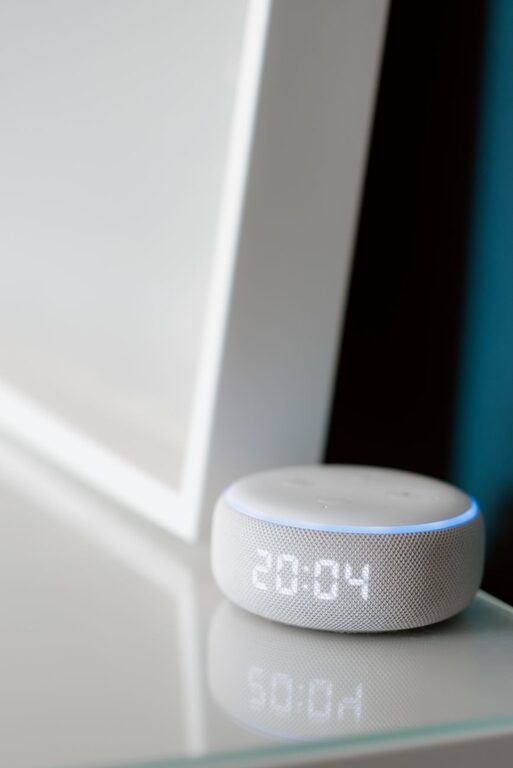
Voice assistants can make everyday tasks easier by helping you remember appointments, plan routines, and manage simple to-do items hands-free. Whether you use a smart speaker, smartphone, smartwatch, or another connected device, setting up a few useful voice commands can save time and reduce mental clutter.
The key is to start with a small number of reminders and routines that fit your daily life. Once those become familiar, you can add more features as needed.
Choose the Right Voice Assistant
Most smartphones and smart speakers include a built-in voice assistant. Common options include assistants from major technology platforms, but the setup process is generally similar.
Before you begin, check that:
– Your device is connected to the internet.
– You are signed in to the correct account.
– The voice assistant app is installed and updated.
– The microphone is enabled.
– Notifications are allowed for reminders and alarms.
– Your device has the correct time zone and location settings.
If you use more than one device, confirm that they are connected to the same account or household system. This helps reminders appear or play on the devices you expect.
Start With Simple Reminders
A reminder is a message that appears or sounds at a specific time or place. Voice assistants can usually create one with a short command.
For example, you might say:
– “Remind me at 8 p.m. to take out the recycling.”
– “Remind me tomorrow morning to call the school.”
– “Remind me when I get home to bring in the packages.”
– “Remind me every Monday at 9 a.m. to review my schedule.”
Use clear wording when creating a reminder. Include the task, date, time, and location when relevant. After speaking, listen for confirmation or check the assistant’s app to make sure the reminder was saved correctly.
It is also helpful to use specific names. “Check calendar” may be less useful than “Check the calendar for Saturday’s appointments.” Clear labels make reminders easier to understand when they appear later.
Create a Morning Routine
Many voice assistants can perform several actions with one command. This feature may be called a routine, shortcut, automation, or scene, depending on the device.
A morning routine might:
- Announce the current time.
- Read the weather forecast.
- Review calendar events.
- Play a news-free music playlist or relaxing audio.
- Turn on selected lights.
- Remind you to prepare for the day.
To create one, open the assistant’s app and look for a section such as “Routines” or “Automations.” Choose a trigger, such as a spoken phrase or a set time, and then add the actions you want.
Keep the first routine short. Too many actions can make it feel slow or confusing. Start with two or three useful steps, test them for several days, and make adjustments based on what you actually use.
Set Up an Evening Routine
An evening routine can help you finish common tasks without relying on memory. For example, a single command could:
– Set an alarm for the next morning.
– Check the next day’s calendar.
– Turn off compatible lights.
– Lower the volume on connected devices.
– Start a timer for a household task.
– Play quiet audio.
You could use a phrase such as “Start my evening routine.” If you prefer not to speak, many assistant apps also let you run routines from a button or schedule.
Avoid creating actions that could cause confusion. For example, do not include a command that turns off important devices unless you have tested it carefully. Review each action before saving the routine.
Use Recurring Reminders
Recurring reminders are useful for tasks that happen regularly. They can be set for specific days, dates, or intervals.
Helpful examples include:
– Watering indoor plants every Saturday.
– Taking out waste on collection day.
– Checking the household calendar every Sunday.
– Replacing an air filter every few months.
– Backing up important files once a month.
– Reviewing a shopping list each Friday.
When creating a repeating reminder, make the schedule as precise as possible. “Every week” may not be enough if the task needs to happen on a particular day. Say or select the exact day and time, then verify the repetition settings in the app.
For tasks that do not happen on a fixed schedule, create a reminder after completing the task. This keeps the next due date accurate.
Add Location-Based Reminders
Some assistants can create reminders that activate when you arrive at or leave a location. This can be helpful for errands and household tasks.
Examples include:
– Remind me to pick up a package when I leave work.
– Remind me to buy coffee when I enter the grocery store.
– Remind me to bring the library books when I leave home.
Location reminders require permission to use location data. Check the assistant’s privacy settings and make sure the location is saved accurately. If a reminder does not work as expected, confirm that location services are enabled and that the assistant has permission to run in the background.
Build a Shared Household System
If several people use the same household account or smart speaker, agree on a simple reminder system. Shared calendars, shopping lists, and household routines can make coordination easier.
Consider using:
– One shared shopping list.
– A household calendar for events.
– Separate personal accounts for private reminders.
– Clearly named routines.
– A shared phrase for common tasks.
For example, “Add milk to the shopping list” is easier for everyone to understand than a custom phrase that only one person remembers.
Keep private information out of shared reminders. If a reminder includes personal details, create it through your individual account or phone instead of a speaker used by the entire household.
Make Voice Commands More Reliable
Voice assistants work best when commands are short and consistent. Use the same wording each time for repeated tasks.
These tips can improve accuracy:
– Speak at a normal pace.
– Move closer to the microphone if the room is noisy.
– Use the assistant’s name before the request if required.
– Avoid combining unrelated tasks in one sentence.
– Check confirmation messages after setting important reminders.
– Rename devices with simple, distinct names.
If the assistant misunderstands you, try rephrasing the command rather than repeating it in exactly the same way. You can also use the app to correct the reminder manually.
Review and Improve Your Setup
After a week, review the reminders and routines you created. Delete anything that is no longer useful, adjust times that do not fit your schedule, and combine similar actions when appropriate.
A good system should reduce effort, not create more notifications. If you frequently dismiss a reminder, ask whether the time is wrong, the wording is unclear, or the task belongs in a different routine.
It is also wise to check your privacy settings regularly. Review which devices have access to your account, microphone, location, calendar, and contacts. Use a screen lock or account security features on personal devices, and avoid storing sensitive information in spoken reminders.
Keep Your System Simple
Voice assistants are most helpful when they support habits you already want to maintain. Begin with a few practical reminders, such as checking the calendar, preparing for the next day, or managing a regular household task.
Once those commands work reliably, add routines that combine several small actions. With clear names, consistent schedules, and occasional reviews, a voice assistant can become a convenient part of your daily organization without making your routine complicated.